
Google Drive
SearchAF can search a Google Drive folder the same way it searches any folder on your device. It works through the Google Drive app you already have, so nothing is uploaded anywhere new and nothing passes through us.
Before you start
You will need the Google Drive for Mac app installed on your machine, configured in either streaming or mirror mode.
Add a Drive folder
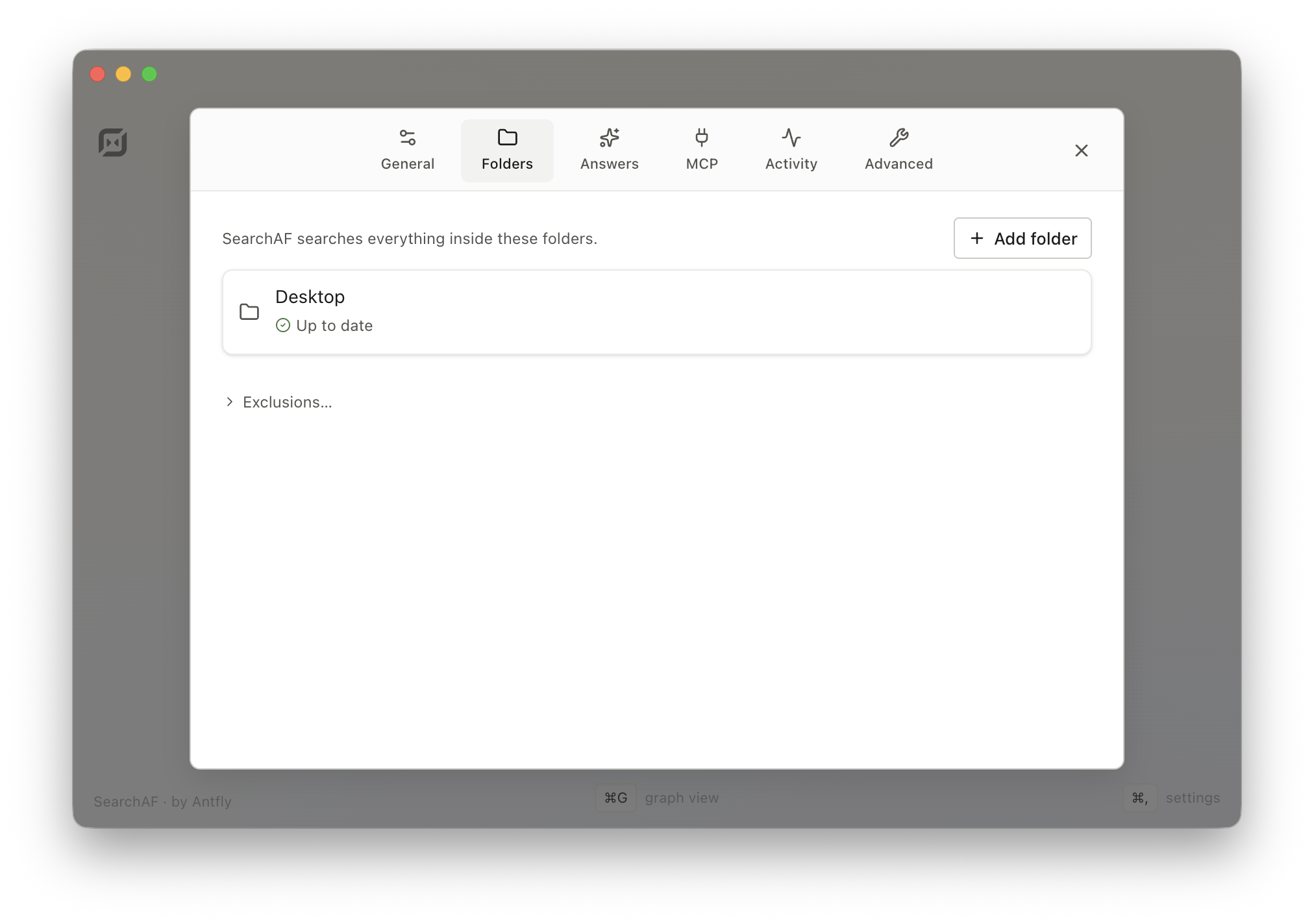
- Open Settings with ⌘ , and choose Folders. Click Add folder in the top right.
- In the picker, choose Google Drive from the sidebar under Locations (probably at
~/Library/CloudStorage/[email protected]), then select the folder you want. My Drive as a whole works, and so does any folder inside it. Shared drives can be added too, but for now their files are searchable by name only.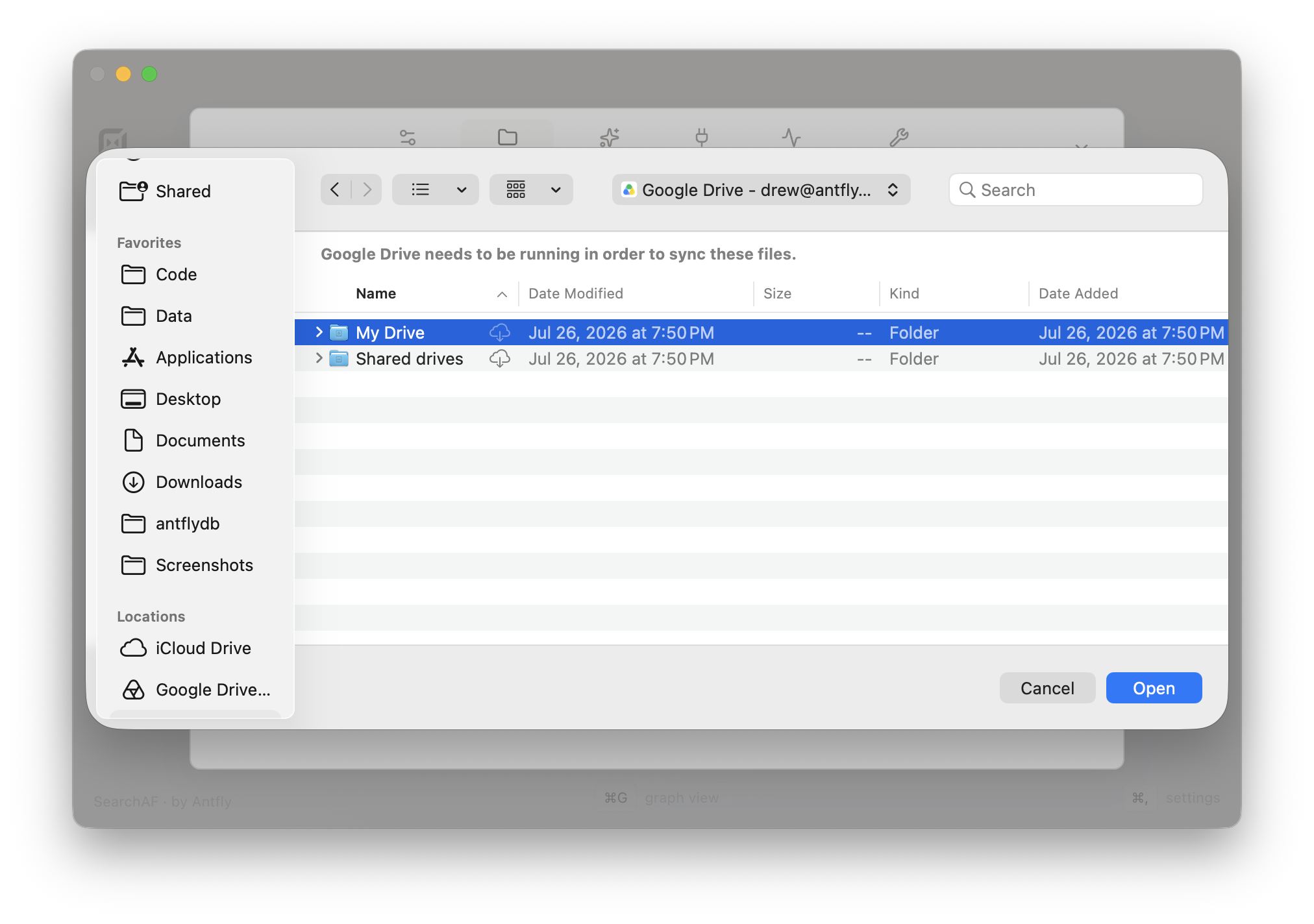
- Click Open. File names are searchable right away. SearchAF then works through the folder in the background, reading each file the way Finder would if you opened it, so the download goes through Google Drive's own cache. A large folder can take a while. If you want to hold off, the folder's row in Settings has a pause button, and resuming picks up where it left off.
Only documents are read this way: PDFs, Office files, text, and code. Photos and video in Drive stay searchable by name and are never downloaded, so a Drive full of media will not fill your disk.
Reading Google Docs
Google Docs, Sheets, and Slides are a special case. On disk they are small placeholder files with no content, so there is nothing for SearchAF to read. To search inside your Google Docs, SearchAF needs to ask Google for the text.
After you add a Drive folder, SearchAF offers a Sign in with Google button on that folder's row. You can also come back to it later. The sign-in asks for two permissions:
- See your Google Docs
- Read-only access to Docs, used to fetch the text of the Docs inside the folders you added. SearchAF never edits or creates anything.
- See your email address
- Used to confirm that the account you signed in with matches the Drive you added.
Your device fetches the text directly from Google and indexes it locally like any other file. The sign-in token is stored in the macOS Keychain. Sheets and Slides stay searchable by name for now.
Removing a Drive folder from SearchAF deletes everything indexed from it. If no other folder uses the Google sign-in, SearchAF removes that too.
Everything else on the privacy page applies unchanged. Search itself never leaves your device.